How to connect Apple iCloud Calendar
The calendar on your iPhone becomes the one that decides what people can book. 42min reads it for conflicts, writes every new booking back to it, and, when Apple can't be reached, withholds slots rather than guess.
No credit card · Free plan
What the iCloud connection does
The connection runs in both directions: 42min reads what's already on your Apple calendar, and puts what gets booked back onto it.
Busy times
READEvery calendar you tick for conflict checks is subtracted from your booking page. A dentist appointment on your iPhone closes that slot to invitees without you touching 42min.
New bookings
WRITTEN BACKEach confirmed booking is created as a real event on the calendar you choose as the write target, so it's on your Mac, iPhone and Apple Watch the moment it's made.
Reschedules and cancellations
FOLLOWEDMoving a booking moves the event; canceling it removes the event. Delete one by hand in Apple Calendar and a later reschedule recreates it rather than losing the meeting.
Recurring events
EXPANDEDRepeating events are worked out occurrence by occurrence, so a weekly stand-up blocks every week, not just the first one.
Connect iCloud in 3 steps
About five minutes, most of it spent on Apple's site generating the password.
Create an app-specific password
Sign in at account.apple.com, open Sign-In and Security → App-Specific Passwords, and generate one for 42min. Copy it: Apple shows it once. This is what you'll enter in 42min alongside your Apple Account email; your normal Apple password won't work here.
Add the calendar in 42min
Open Availability → Calendar, click Add Calendar, and pick Apple iCloud Calendar from the provider list. Enter your Apple Account email and the app-specific password, then click Connect.
Choose what each calendar does
Tick the calendars that should check for conflicts, and pick the one new bookings are written to. This step is the one people skip, and it's the one that actually protects your time.
The same dialog handles Yahoo, Fastmail, Zoho, Yandex and self-hosted CalDAV servers such as Nextcloud or Radicale. Full reference in the CalDAV and Apple iCloud help guide.
iCloud alongside everything else
iCloud isn't an either/or. Connect as many accounts as you like, from the same provider or different ones, and decide per calendar what each is for. The setup most people end up with: a work Google or Microsoft account for bookings, and a personal iCloud account checked for conflicts only.
The effect is that your private life protects your work calendar without ever being exposed to it. A dentist appointment on your iPhone closes that afternoon slot; the client who books the next one never sees why, and nothing about the meeting they book lands on your personal calendar.
What your iCloud calendar can carry
Nothing in 42min is gated on which calendar provider you use. Once iCloud is connected, every event type behaves the same as it would for a Google or Microsoft user, and on a team, hosts can be on different providers entirely without anyone having to standardize.
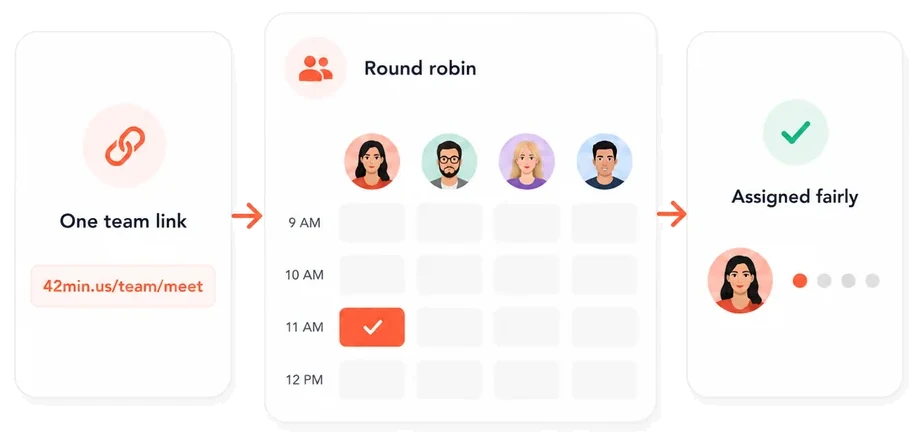
- Round robin pools your team's availability behind one link and assigns each booking to whoever has had the fewest recent meetings, reading each host's own calendar, iCloud or otherwise.
- Group events let many invitees book the same slot, with a seat cap that closes it when full.
- Routing forms ask a few questions first and send each visitor to the booking page that fits.
- Meeting polls find a time that works for a group. While the vote is running, 42min places tentative holds on the candidate times on your write-target calendar, so nobody else can quietly book a slot the group is still voting on.
When iCloud won't connect
“The server rejected the username or password.” Nearly always the normal Apple Account password being used instead of an app-specific one: Apple won't accept it over CalDAV. Generate an app-specific password and try that.
It worked yesterday and now it doesn't. Check whether your Apple Account password changed. Apple revokes every app-specific password when it does, silently and without warning 42min. Generate a new one and use Reconnect.
“Too many attempts.” Connection attempts are rate-limited to make guessing credentials pointless. Wait a minute and try again.
Connected, but slots are wrong. Tick the calendar that actually holds your events for conflict checks. Connecting the account doesn't select anything on its own.
Bookings aren't reaching Apple. Set a write target. Without one, 42min has nowhere to create the event. The booking is still confirmed, it just doesn't appear on your calendar.
Disconnecting doesn't rewrite the past. Removing the account stops conflict checking and write-back going forward; events already written to your calendar stay exactly where they are.
Apple iCloud Calendar FAQ
Yes. Apple iCloud Calendar is a supported calendar connection on every plan, including the free one. You connect it from Availability → Calendar with your Apple Account email and an app-specific password. Once connected, 42min removes your busy times from your booking page and writes each new booking back to the iCloud calendar you choose.
Your Apple calendar, behind your booking link
Connect iCloud once and stop checking your phone before you say yes to a meeting. Free, with no per-seat bill.
No credit card · Free plan