How to schedule meetings from Claude or ChatGPT

Yes, you can now schedule meetings from Claude or ChatGPT by typing a sentence: "find me a free slot with Anna next week and book it". The assistant checks your real availability, books the meeting, and the invitation goes out as if you had done it yourself. What makes this possible is MCP, a standard that lets an AI assistant work inside other apps, and in 2026 the modern scheduling tools all got an MCP server.
This guide explains what MCP is, how to connect Claude, ChatGPT and other assistants to your scheduling tool, what you can ask once connected, and what to check before you let an assistant touch your calendar. It covers 42min, Calendly and Cal.com, because the setup is nearly the same and the differences are worth knowing.
What MCP is, in two paragraphs
MCP stands for Model Context Protocol. It is an open standard, published in late 2024, that describes how an AI assistant discovers and calls the functions of another app. The app runs an MCP server that offers a list of tools, such as "find available slots" or "cancel a booking", each with a short description. The assistant reads that list, and when you ask for something it picks the tool, fills in the details and calls it.
For you, the mechanics are invisible. You connect the server once, sign in, and from then on you talk to the assistant in plain words. "Am I free Thursday afternoon?" becomes a call to the availability tool, and "move my 3 pm to tomorrow morning" becomes a check of the new slot followed by a reschedule. Claude, ChatGPT, Claude Code, Cursor and most other AI tools support MCP today.
How to connect your assistant
Every scheduling MCP server is a URL. You add it to your assistant as a connector, the assistant sends you to the scheduling tool's sign-in page, you approve the access, and the connection is live. For 42min the URL is on the AI assistants page under Integrations in your dashboard.
- Claude. Open Settings, then Connectors, then Add custom connector. Paste the URL and save. Claude opens the sign-in screen, and you approve. Calendly also appears in Claude's own connector list, so it needs no URL.
- ChatGPT. Open Settings, then Apps and Connectors, then Advanced settings, and turn on Developer mode. Back in Apps and Connectors, click Create, paste the URL and choose OAuth. Custom connectors need a paid ChatGPT plan and are not available in the mobile apps. Calendly has its own ChatGPT app.
- Claude Code. One command in the terminal, then sign in on first use:
claude mcp add --transport http 42min https://api.42min.us/mcp- Cursor, Windsurf and other clients. Add a generic HTTP server to the client's MCP configuration:
{
  "mcpServers": {
    "42min": { "type": "http", "url": "https://api.42min.us/mcp" }
  }
}
💡 Test the connection with a question that has one right answer, such as "what is my 42min username?". If the assistant answers correctly, the tools are loaded. In 42min, the AI assistants page then lists the connected assistant with the time it was last used.
What you can ask
Once connected, the assistant can do most of what you do in the dashboard. These prompts work with 42min today, and similar ones work with Calendly and Cal.com:
- Read your week. "What does my week look like?" or "Find Anna Kovacs and tell me when we last met."
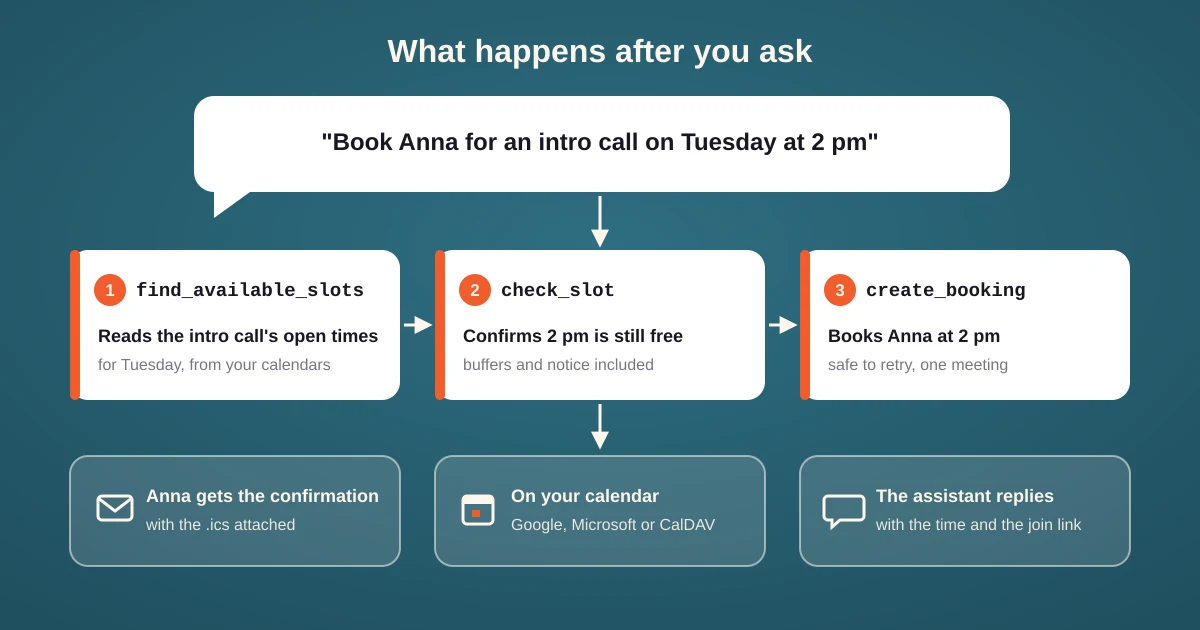
- Book, move and cancel. "Book anna@example.com for an intro call next Tuesday at 2 pm.", "Move my 3 pm to tomorrow morning." or "Cancel my 9 am and let the attendee know." The invitee gets the same emails as from the dashboard, and calendars are updated.
- Change availability. "I'm out of office from August 4 to August 8.", "Block next Friday afternoon."
- Set up recurring meetings. "Set up a weekly check-in with Elena on Tuesdays at 10 for 12 weeks.", then later: "pause the series while I am away" or "move it to Marco".
- Work with polls, links and forms. "Draft a meeting poll for the board with three times next week and show it to me before it goes out.", "Make three secret links for my strategy session and write the email that carries them." or "Run a 200-person company asking for a demo through my routing form and tell me where it lands."
⛔ A common mistake is to treat the assistant like a search box and ask it to "find a time that works for Anna". The assistant can see your calendar, not Anna's. Give it the time you have agreed on, or ask it to make a poll or a scheduling link that Anna can use herself. The assistant works for the host. Invitees keep booking through your booking page.
What to check before you connect
An assistant with write access to your calendar can book, move and cancel real meetings, with real emails going to real people. Four things decide how safe that is:
- What the assistant can see. In 42min, access follows your dashboard role. A member's assistant sees only that member's bookings and availability, a manager's assistant also reaches the people they manage, and an admin's assistant reaches the whole organization. Nothing outside that reach is ever returned.
- Read-only access. Signing in with OAuth grants reading and writing together on all three tools. In 42min an admin can instead create a personal access token with only read scopes, and an assistant connected with it sees the reading tools and none of the others.
- Actions that cannot be undone. Booking is safe to retry: if the assistant sends the same request again after a timeout, 42min keeps a single meeting. Publishing a poll emails every participant at once, so the assistant is instructed to show you the draft and confirm first.
- Revoking. Disconnect the assistant on the scheduling tool's side, not only in the chat app. In 42min that is the AI assistants page, and an admin can also turn off AI assistants for the whole organization with one switch.
42min, Calendly and Cal.com compared
All three servers do the basics: find slots, book, reschedule, cancel, and read your schedule. The differences are in setup, reach and control.
| 42min | Calendly | Cal.com | |
|---|---|---|---|
| 🔌 Setup | Custom connector URL | Built into Claude's connector list and a ChatGPT app | Custom connector URL |
| 🤖 Documented clients | Claude, ChatGPT, Claude Code, Cursor, Windsurf | Claude, ChatGPT, Muse, any MCP client | Claude Desktop, Cursor, VS Code, Grok |
| 🧰 Tools | 43 | Not published | 76 |
| 👥 Access follows your role | Yes: member, manager, admin | Not documented | Not documented |
| 👀 Read-only option | Yes, with a token | Not documented | Not documented |
| ✏️ Edits event types | No, on purpose | Yes | Yes, creates and deletes them too |
| 💰 Plan | Free | Any plan, including free | Not stated |
Calendly wins on convenience: a Claude user picks it from a list and never sees a URL. Cal.com has the widest reach, with tools that create event types, edit routing forms and manage team memberships. 42min draws the line differently. Its assistant manages meetings, availability, links, polls and recurring series, but cannot create event types, edit routing forms or change organization settings. Those stay in the dashboard, where a wrong click is easier to see than a wrong sentence. The 42min MCP server is part of the free plan, next to the REST API and webhooks.
Tips for scheduling with an assistant
- Name the event type. "Book Anna for an intro call" picks the right duration, location and questions. "Book Anna" makes the assistant guess.
- Give times in your own time zone. The assistant knows your profile time zone and converts for the invitee. Writing "2 pm Lisbon time" when you are in Lisbon only adds a chance of error.
- Ask for the draft first. For a poll, a series or a batch of links, "show me before you send" costs one message and avoids an email you cannot recall.
- Start read-only for a team. Let a few people use a read-only token for a week, then switch to full access once you see what they ask for.